HubSpot SMS Integration with ValueFirst
Introduction
ValueFirst has developed a marketplace application that integrates seamlessly with HubSpot, enabling users to send SMS messages directly from their HubSpot accounts.
Key Features
- Multiple SMS Accounts: Manage multiple SMS accounts within the application.
- Template Management: Create and manage SMS templates; fetch WhatsApp templates with a single click.
- Versatile Messaging: Send SMS from Contacts, Companies, Deals, and Tickets modules.
- Bulk and Automated Messaging: Send bulk or individual messages; set up trigger-based notifications using HubSpot Workflows.
- Delivery Reports: Access SMS delivery reports directly in the Contact Activity timeline.
Pre-requisites
- XML Account for SMS: Ensure you have an XML account for SMS with ValueFirst.
- IP Whitelisting: Request IP whitelisting for your XML account by contacting ValueFirst support. 3.108.187.149
Configuration:
Authorize Your HubSpot Portal
- Authorize HubSpot Portal: Contact partnerships@vfirst.com to receive an invite link.
- Configure SMS Account: After authorization, navigate to "SMS Configurations" and click "Add New Configuration." Enter your Username and Password to set up your SMS account.
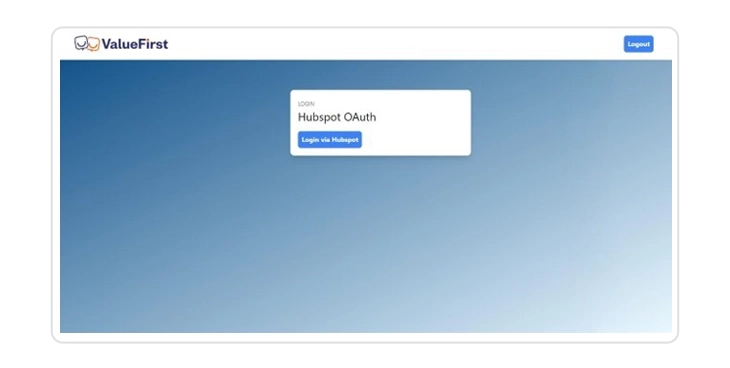
Authorize HubSpot Portal: Login Via HubSpot
Add SMS Account
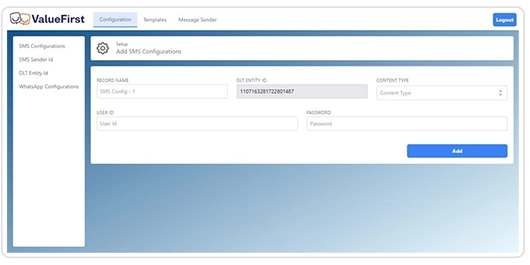
- In the “SMS Configurations” -> Click on Add New Configuration button.
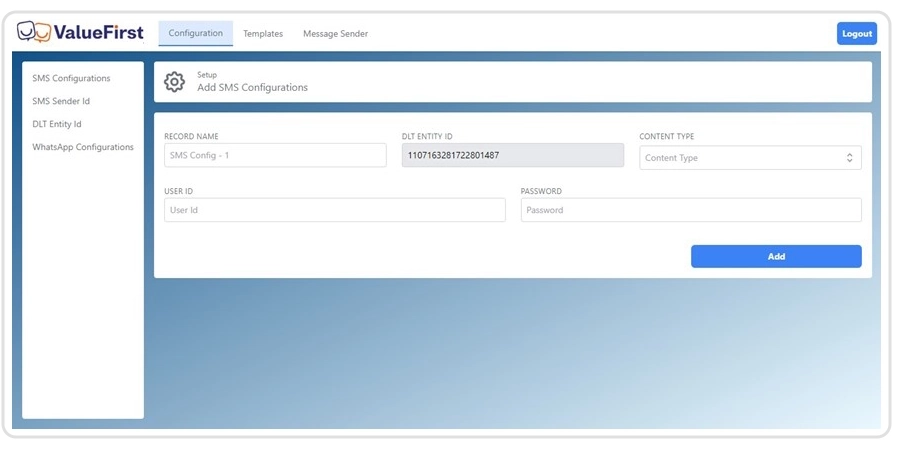
Add Sender ID: In "SMS Sender Id," click "Add New Sender Id" and map the sender ID to the configured account.
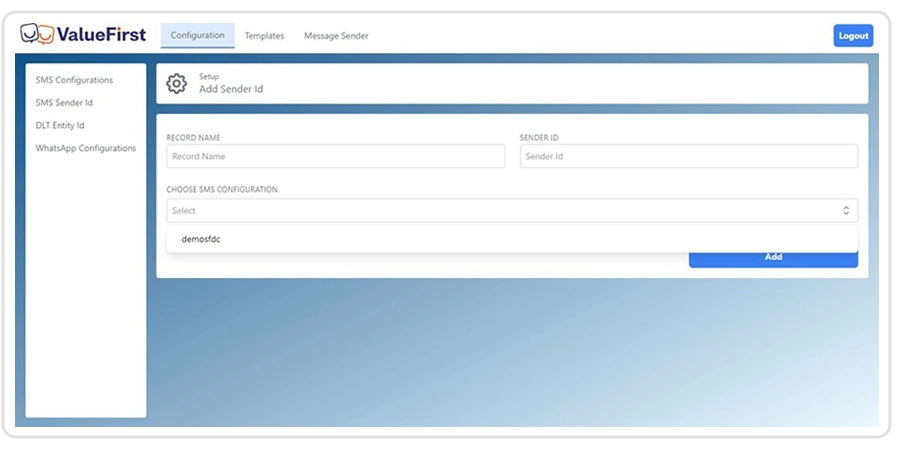
Add SMS Templates: Go to "SMS Templates," click "Add New Template," and associate it with the appropriate SMS configuration.
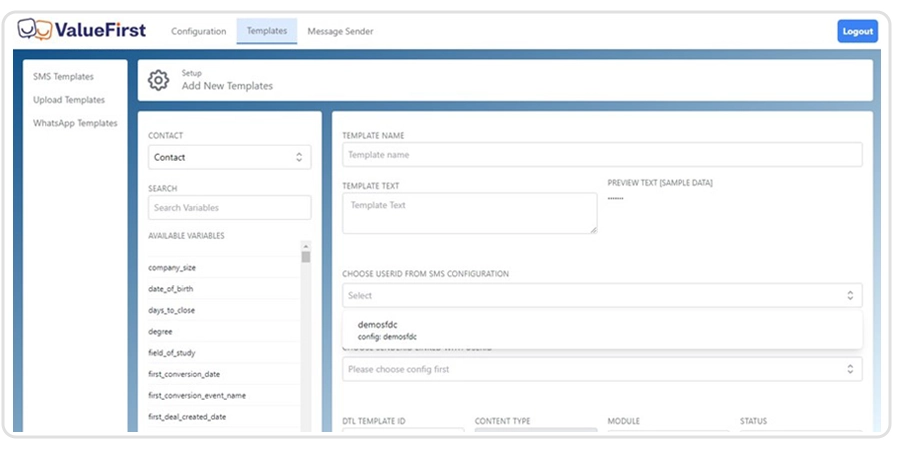
Insert Variables in Templates: While adding a template, use the "Available Variable" options to insert dynamic fields. Remove the '.*', select the relevant module, and choose the desired field name.
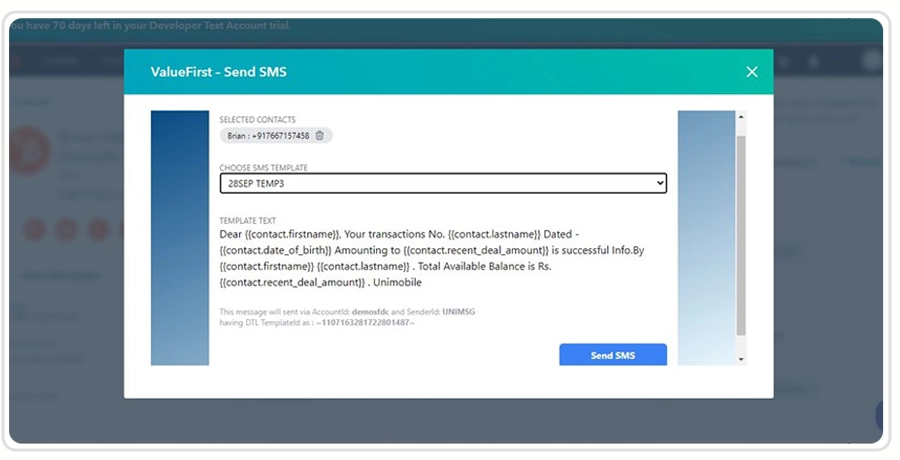
Send SMS
- Individual Messages: Within a contact or any relevant module, click the "Send SMS" button. Select the desired template and send the message.
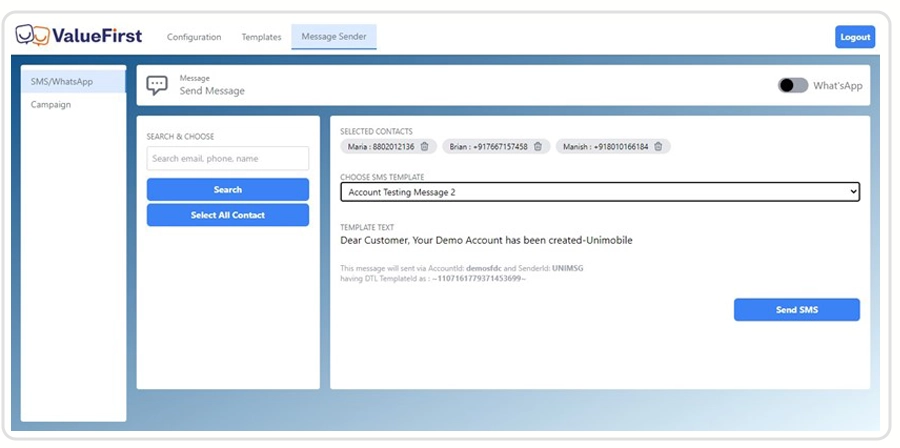
- Bulk Messages: Log in to the portal, select multiple contacts from "Message Sender," choose a template, and click "Send."
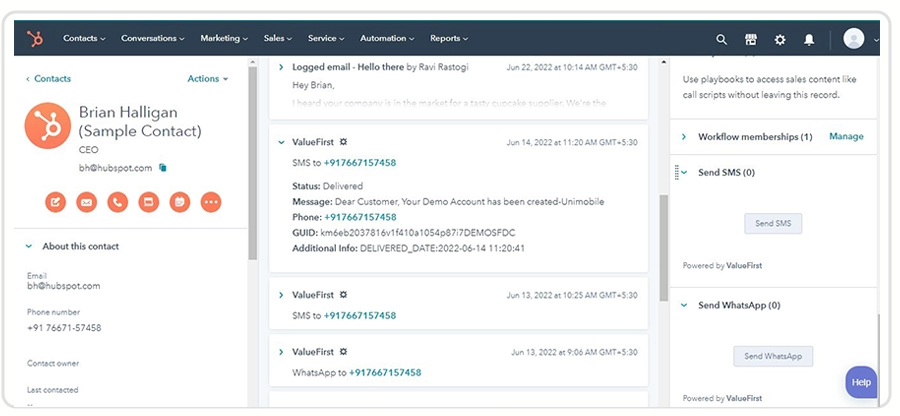
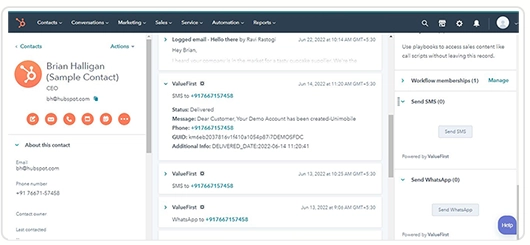
SMS Reports:
All sent messages are logged in the respective contact's timeline within HubSpot, providing a comprehensive communication history.
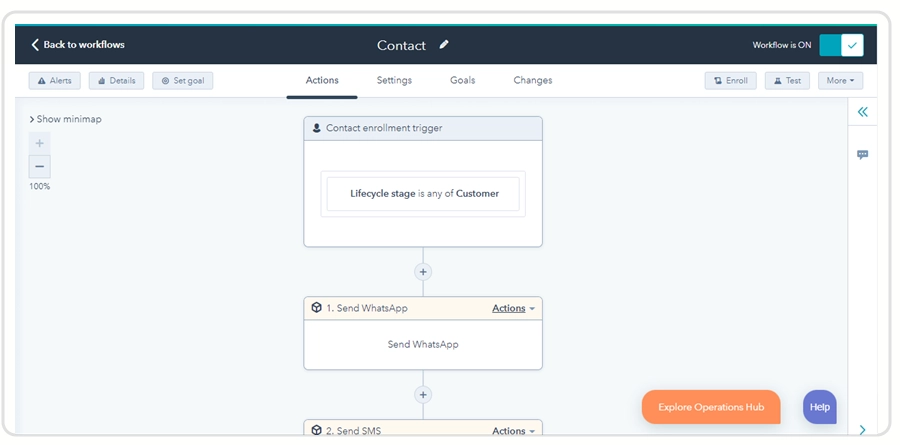
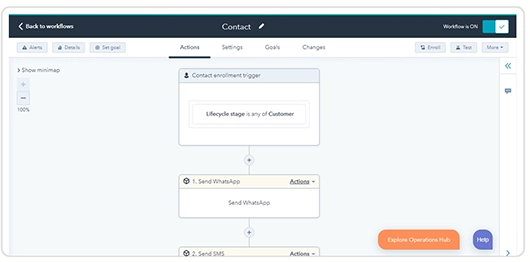
Setting Up HubSpot Workflows for SMS:
To automate SMS communications:
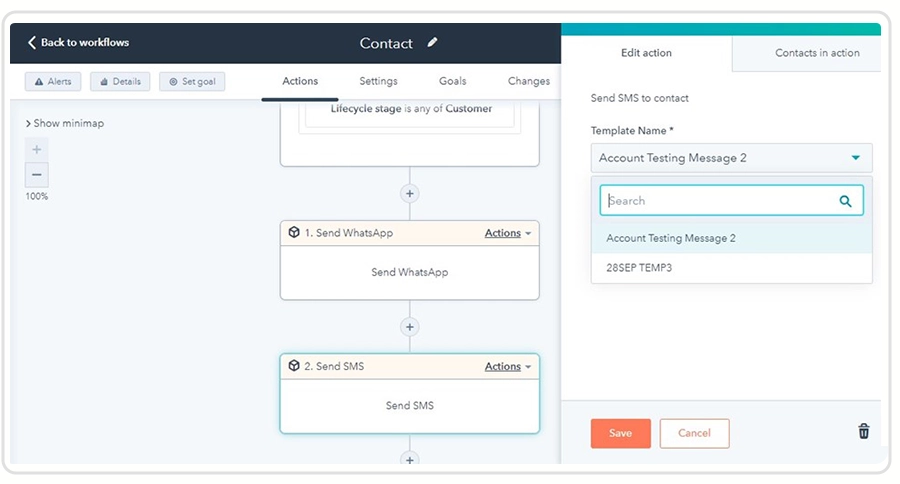
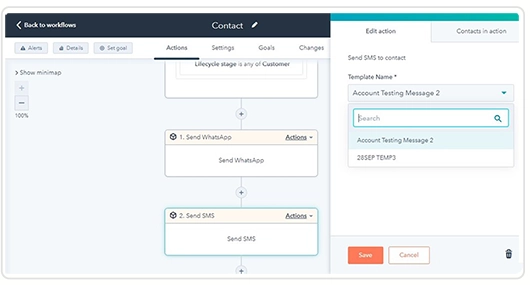
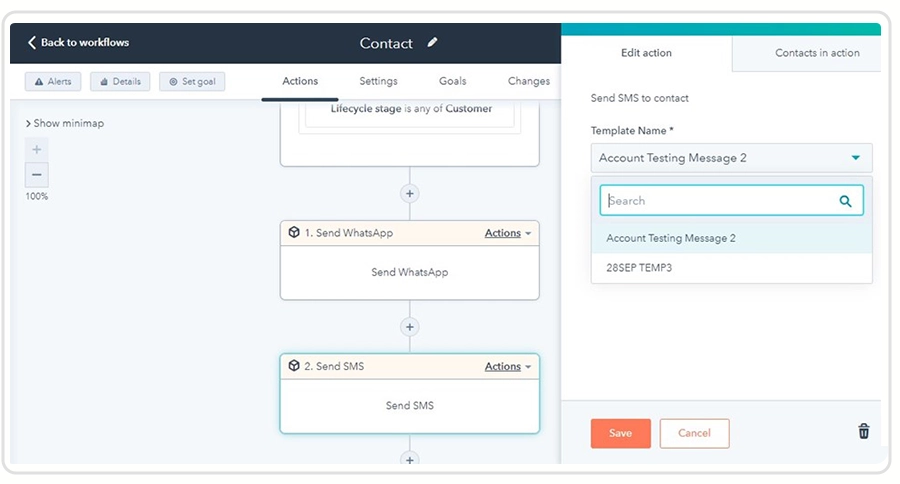
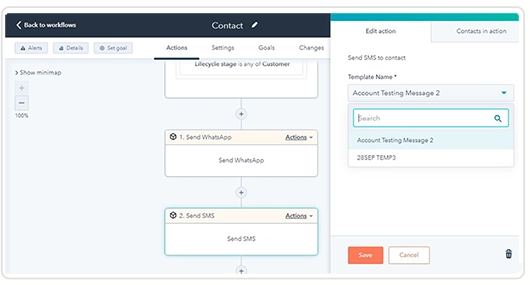
- Navigate to "Automation" > "Workflow" in HubSpot.
- Select "Send SMS" as the action.
- Choose the desired template and save the workflow.