ValueFirst for Zoho CRM Integration - SMS
WhatsApp
SMS
Introduction:
The ValueFirst for Zoho CRM application is designed for customers using Zoho CRM and ValueFirst SMS services to send messages to their clients. This integration allows users to manage SMS accounts, send bulk or trigger-based messages, and track SMS deliveries seamlessly within Zoho CRM.
Key Features
- Manage multiple SMS accounts.
- Create and manage SMS templates.
- Send SMS from Zoho CRM modules such as Contacts, Companies, Deals, and Tickets.
- Support for both single and bulk SMS sending.
- Trigger-based SMS notifications using Zoho Workflows.
- Delivery reports available for each SMS in the Contact Activity.
Pre-requisites
- XML account for SMS.
- Obtain required credentials (Username, Password, and WhatsApp Number).
- IP whitelisting of the XML account on the ValueFirst side.
136.143.160.0
135.84.80.0
165.173.128.0
204.141.32.0
204.141.42.0
Configuration
- Install the ValueFirst for Zoho CRM application from Zoho Marketplace.
- After installation, configure your SMS and WhatsApp accounts by entering the username and password.
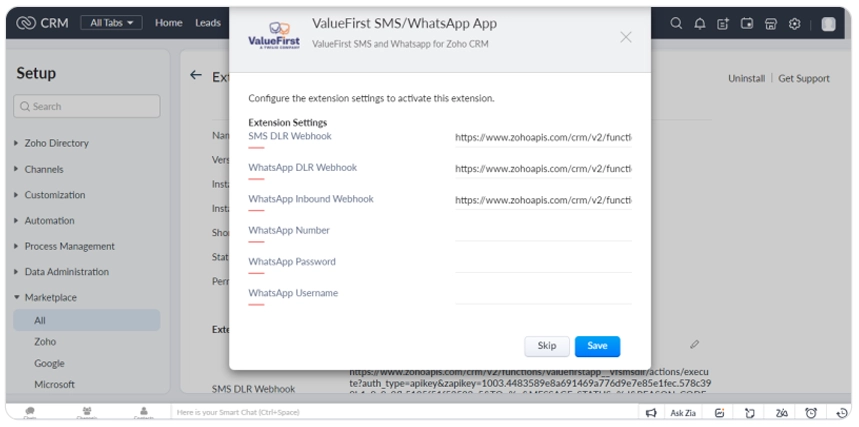
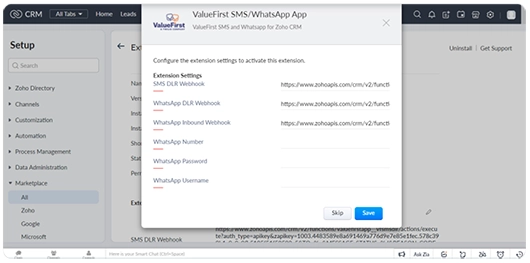
- Send the SMS DLR Webhook to the ValueFirst sales/support team for delivery report configuration.
Delivery Webhook:
To access the webhook: Navigate to Marketplace > All > Installed > Configure.
Steps to Configure and Use ValueFirst for Zoho CRM:
- Add SMS Account:
- Navigate to the SMS Account module.
- Click on the Create SMS Account button to add a new account.
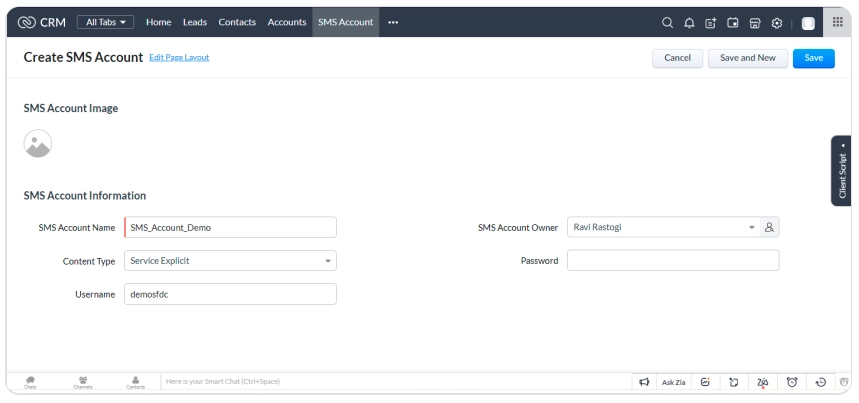
Add Sender ID:
- Go to the Map Sender ID module.
- Click on the Map Sender ID button to associate a sender ID with the newly created SMS account.
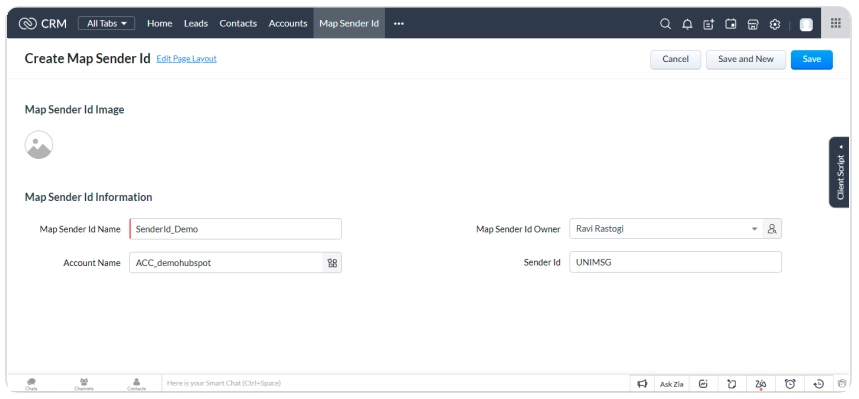
Add SMS Templates:
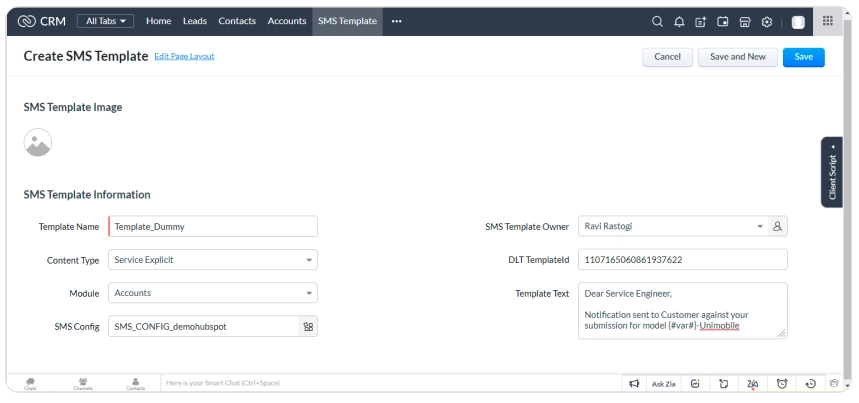
- In the SMS Template module, click on the Create SMS Template button.
- Link the created SMS template with your SMS configuration.
Add Variables in Templates:
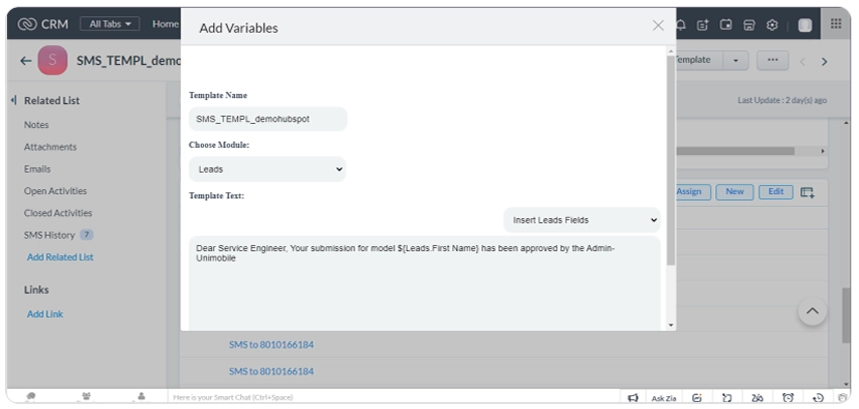
- In the SMS Template module, click on Add Variables.
- To insert variables, remove the. *, click on Insert Fields, and select the required field name.
Send SMS:
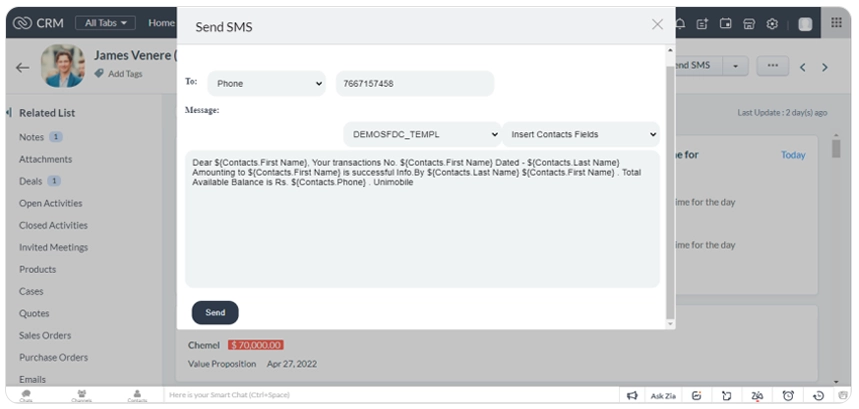
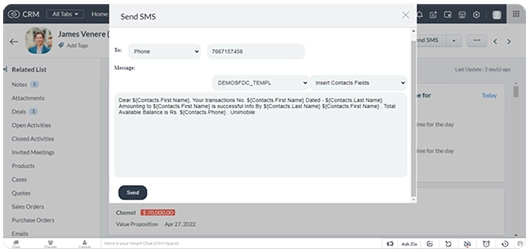
- Navigate to the Leads, Contacts, or Accounts module and click on the Send SMS button.
- Choose a template and select the phone number fields.
- For bulk SMS, select a list of Leads, Contacts, or Accounts from the grid, then click Send SMS and choose the template.
SMS Reports:
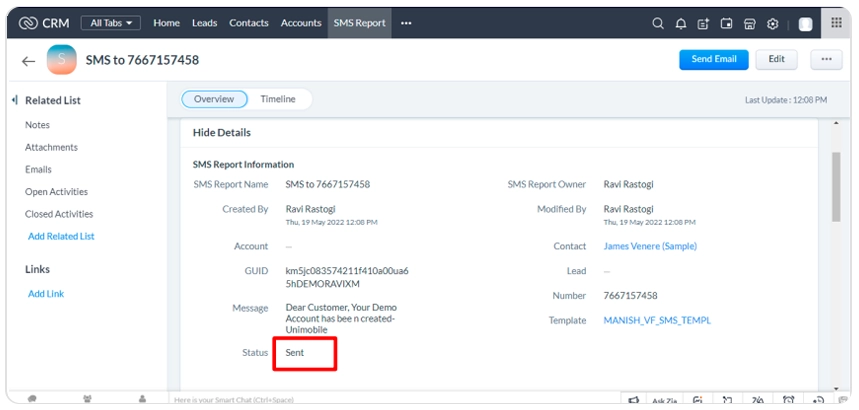
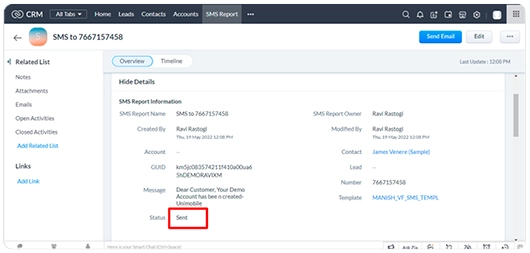
- After sending SMS, you can view the transaction data in the SMS History custom module.
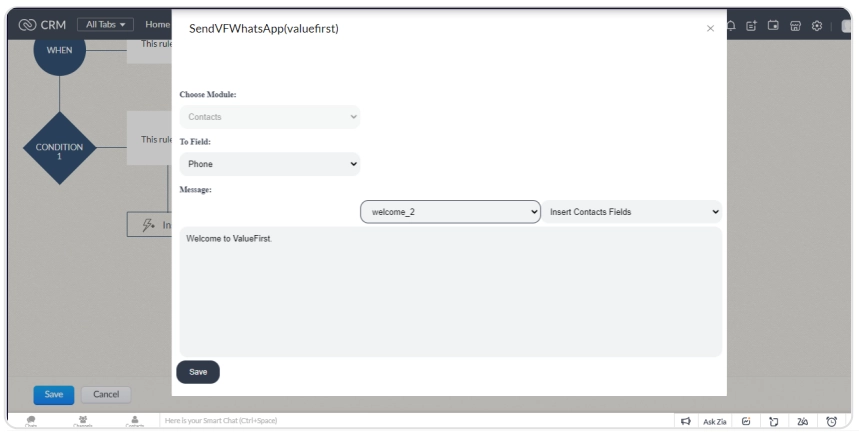
Setup Zoho Workflow for SMS:
- In Zoho CRM, under Workflow Action, choose Send SMS.
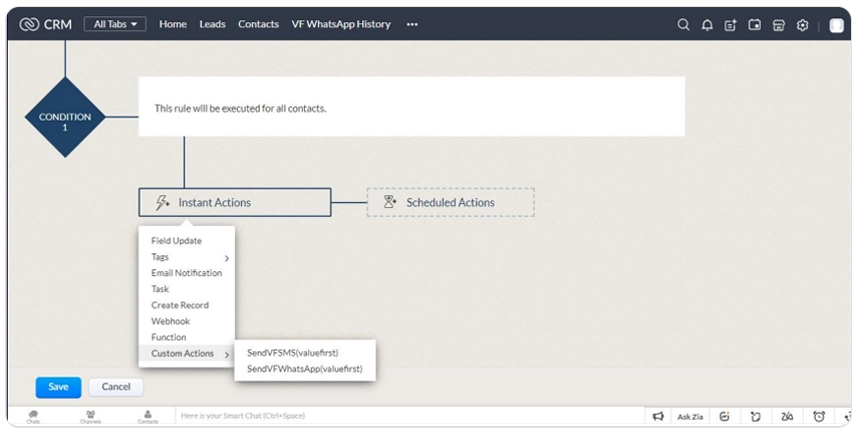
- Select the template and phone fields to send the SMS, then click Save.