ValueFirst for Zoho CRM Integration – WhatsApp
WhatsApp
SMS
Introduction:
ValueFirst Digital has developed a marketplace application designed to help customers using Zoho CRM integrate with the ValueFirst WhatsApp API. This integration enables efficient communication by allowing users to send and manage WhatsApp messages directly from Zoho CRM.
Key Features:
- Configure a single WhatsApp account.
- Manage and auto-fetch WhatsApp templates with ease.
- Send messages from various Zoho CRM modules like Contacts, Companies, Deals, and Tickets.
- Supports both text and rich media templates.
- Allows bulk and individual message sending, as well as trigger-based notifications using Zoho Workflows.
- Delivery reports and inbound messages are visible in Contact activity.
Pre-requisites
- Access to WhatsApp channel APIs
- Obtain required credentials (Username, Password, and WhatsApp Number).
- IP whitelisting against the XML account at ValueFirst’s end
136.143.160.0
135.84.80.0
165.173.128.0
204.141.32.0
204.141.42.0
Configuration
1. Install the Application:
- Visit the Zoho Marketplace and install the “ValueFirst for Zoho CRM” application.
2. Post-Installation Setup
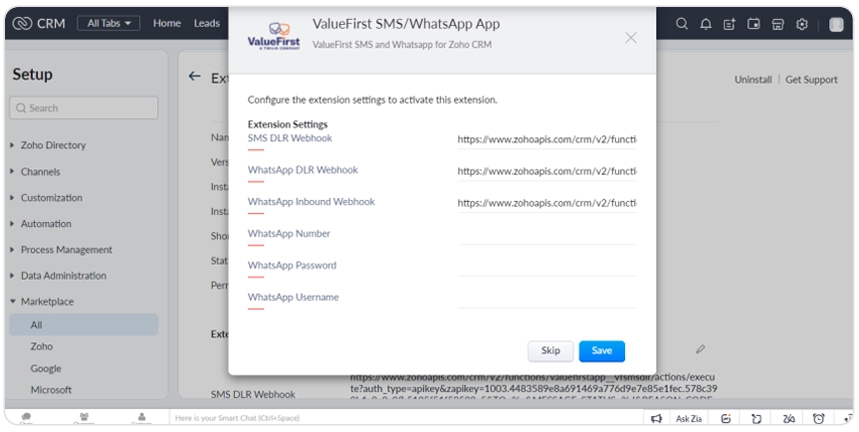
- Configure your WhatsApp account using your Username and Password.
3. Send Webhooks for Configuration:
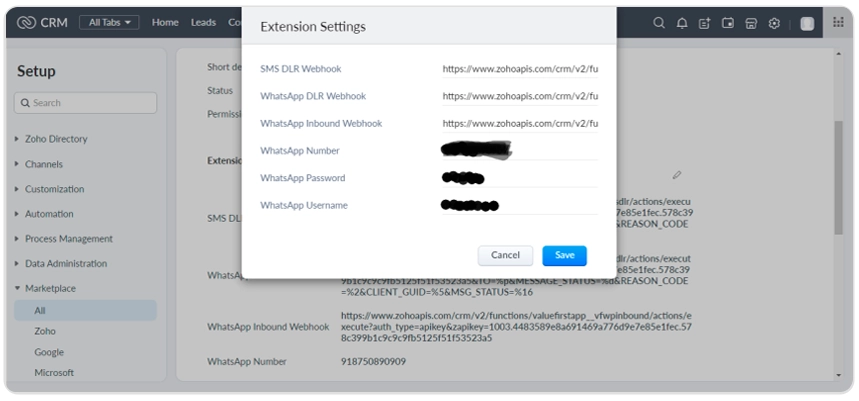
- Share the WhatsApp Delivery Report (DLR) Webhook and WhatsApp Inbound Webhook with ValueFirst sales/support team to enable delivery reports and inbound message processing.
Access Webhooks:
- Navigate to Marketplace All -> Installed -> Configure to copy and share the required webhook details.
WhatsApp Configuration
- Go to Marketplace All -> Installed -> Configure.
- Update the WhatsApp credentials:
- Username
- Password
- WhatsApp Number
Using the Application
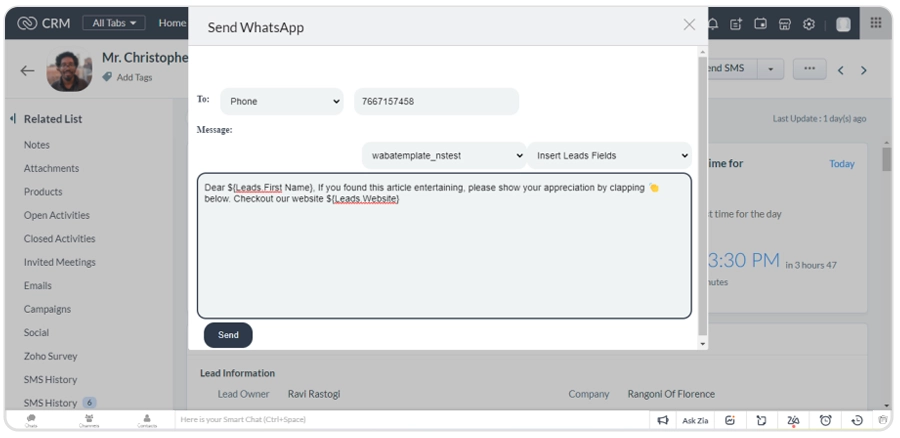
- Fetch WhatsApp Templates
- Navigate to the respective module (Leads, Contacts, Accounts).
- Click on the “Send WhatsApp” button.
- Select and fetch the approved templates automatically.
Send WhatsApp Messages
For Single Message:
- Open a specific record under Leads, Contacts, or Accounts.
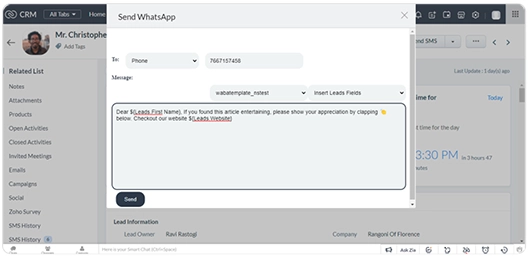
- Click on the “Send WhatsApp” button.
- Select a template, enter media URLs if required, and send the message.
For Bulk Messages:
- Select multiple records from the Leads, Contacts, or Accounts grid view.
- Click on
“Send WhatsApp” , choose a template, provide any necessary media, and send.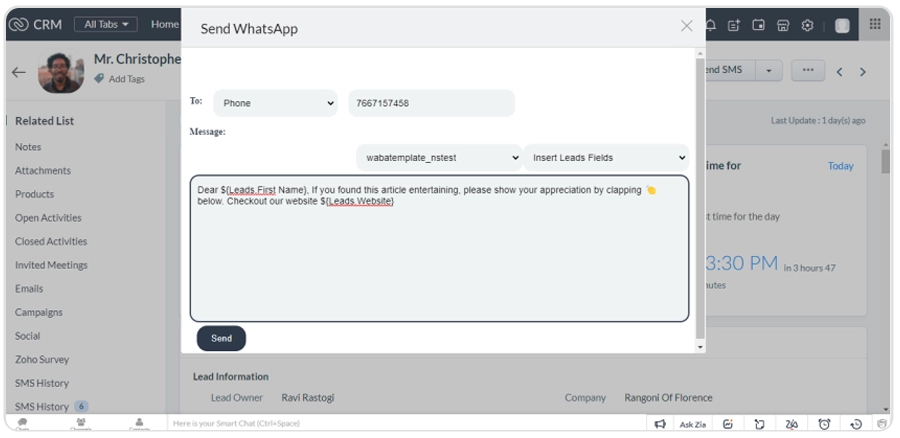
- Track message transaction data under the “WhatsApp History” custom module.
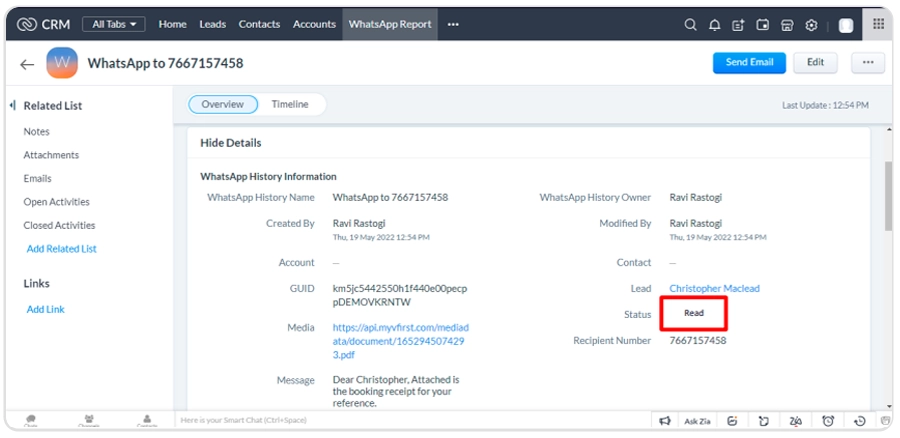
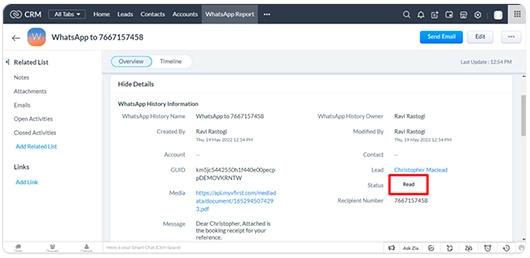
- Inbound WhatsApp messages are visible in the Contact Activity section.
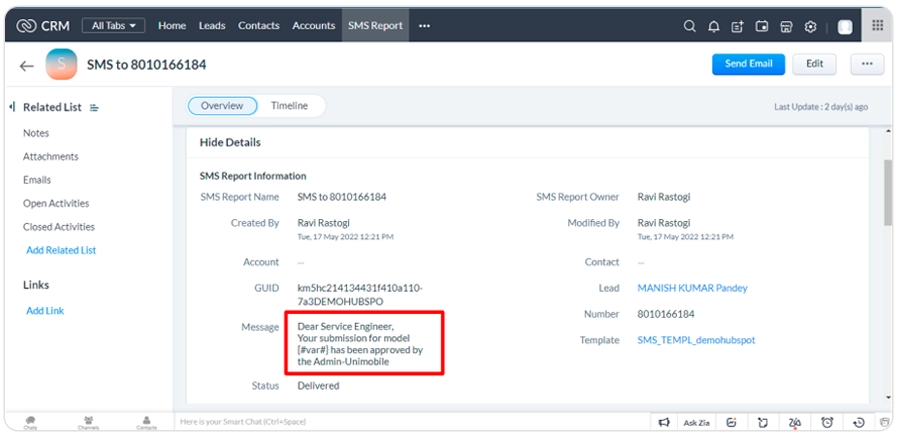
Zoho Workflow Setup for WhatsApp Channel
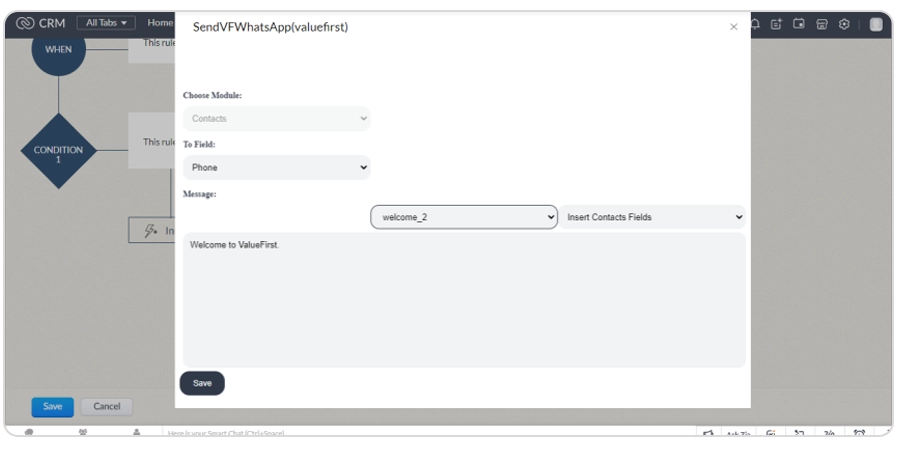
- Under Workflow Action, select “Send VF WhatsApp.
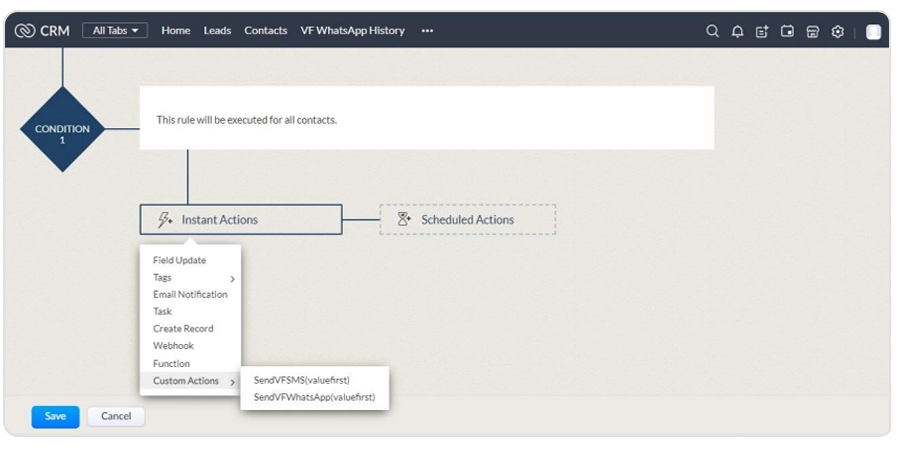
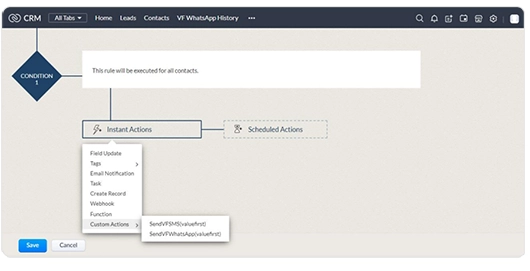
- Choose a template and relevant phone fields.
- Save the workflow configuration.