


ValueFirst WhatsApp & SMS Integration with Zendesk Sell
WhatsApp & SMS
Introduction
Elevate your Zendesk Sell platform with a robust solution designed for native SMS and WhatsApp communication.
Configuration
Steps to get the Extension:
- Login to Zendesk Sell
- Navigate to Marketplace > App Marketplace.
- Search for and install ValueFirst Business Messaging.
Note: This application uses the Unified API.
Extension Configuration:
Access the Application
- Log in to Zendesk Sell.
- Go to the Contact, Lead, or Deal modules.
- Find the ValueFirst Business Messaging App in the Sidebar and open it.
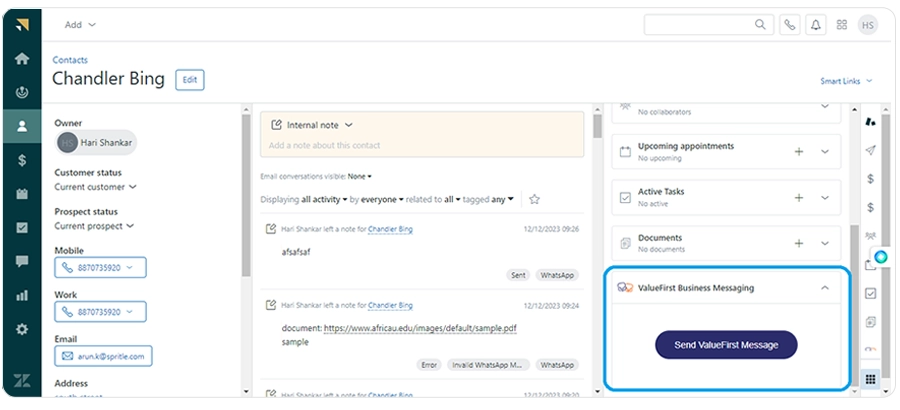
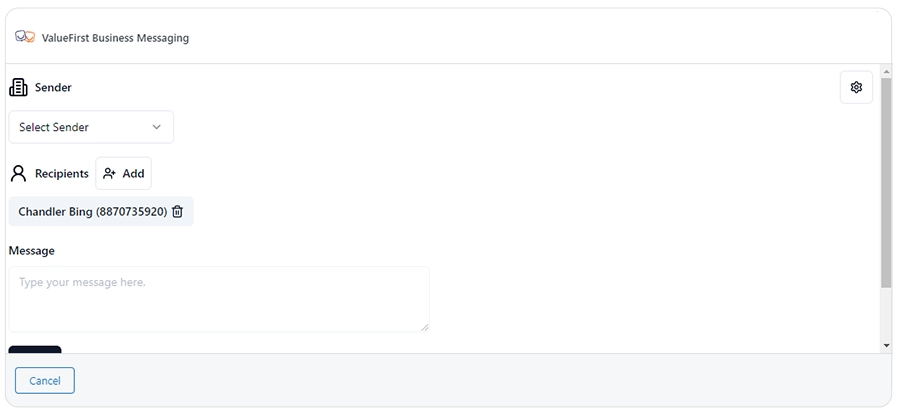
- Click the Setting Icon at the top right.
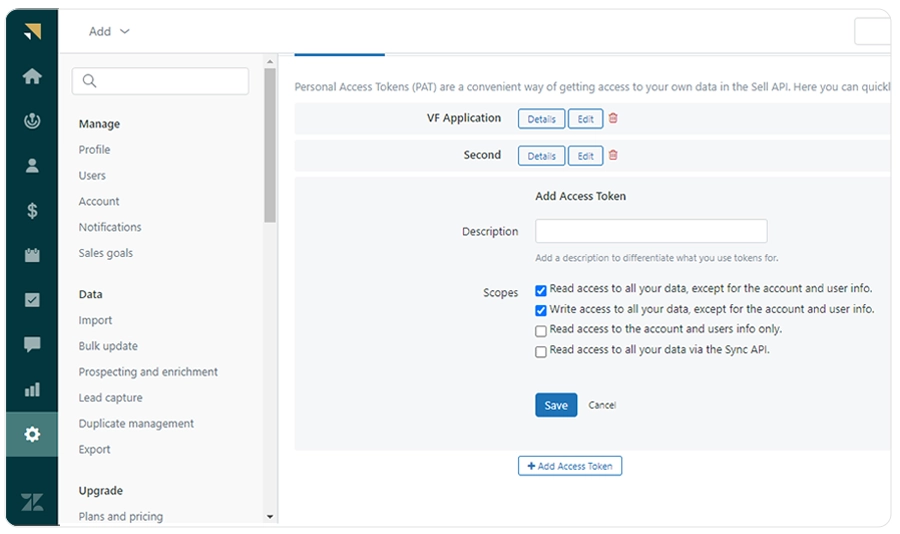
Configure the Zendesk Credentials
- Click Setting at the navbar.
- Go to Integration > OAuth.
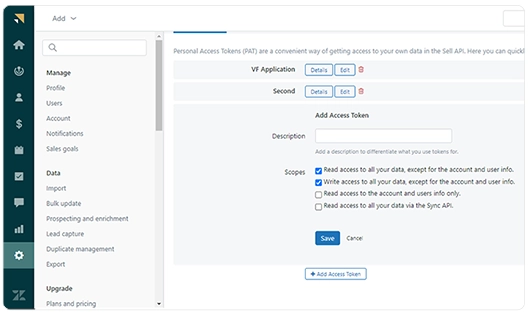
- Under Access Token. Click Add Access Token.
- Scopes - Read access to all your data, except for the account and user info, Write access to all your data, except for the account and user info.
- Use the access token in Zendesk Credentials
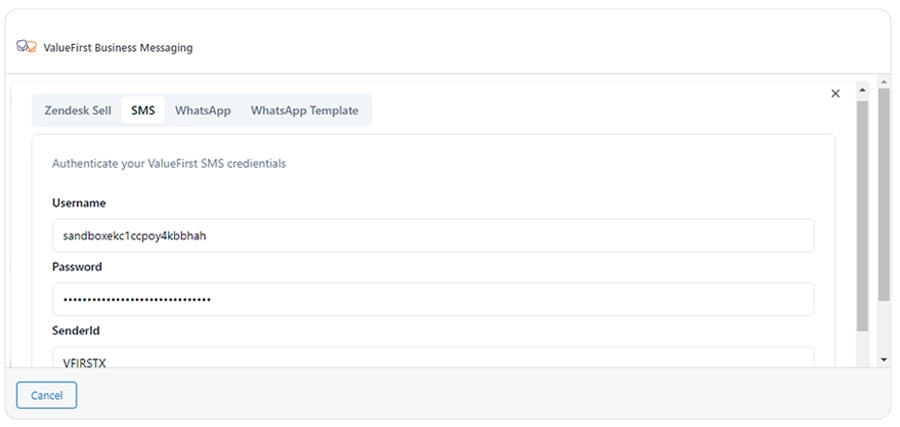
Configure the ValueFirst SMS Credentials
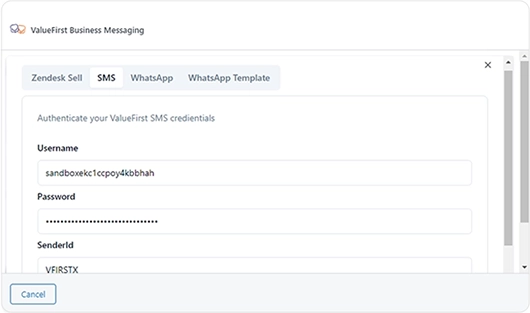
Provide the following details:
- Username
- Password
- Sender ID
- Region
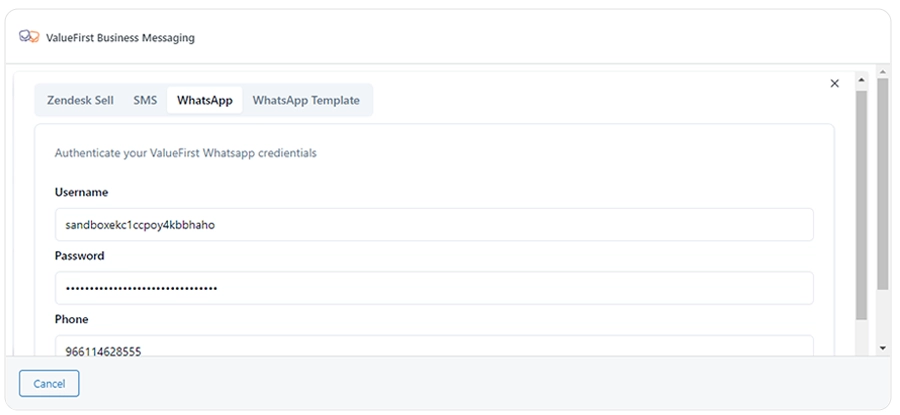
Configure the ValueFirst WhatsApp credentials.
Provide the following details:
- Username
- Password
- Business Number
- Region
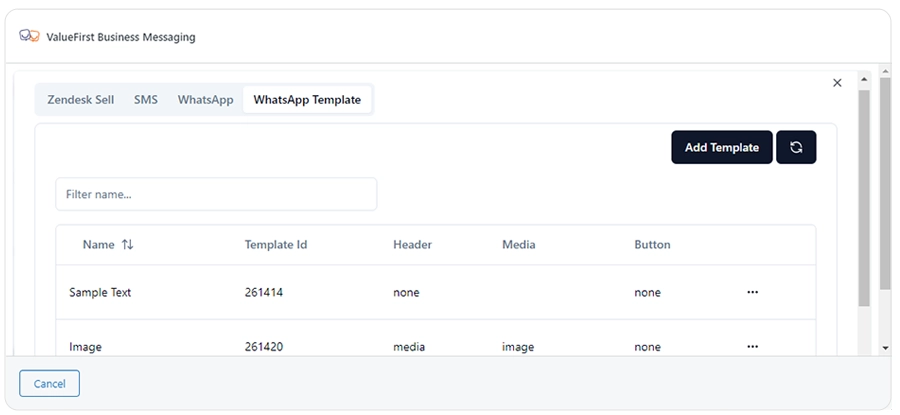
Configure the ValueFirst WhatsApp Template
Note: Since Unified API doesn’t have API to fetch templates. The user should manually configure each template.
Outbound Message
- Go inside the contact or respective module.
- Select SMS Sender and type your message and click Send.
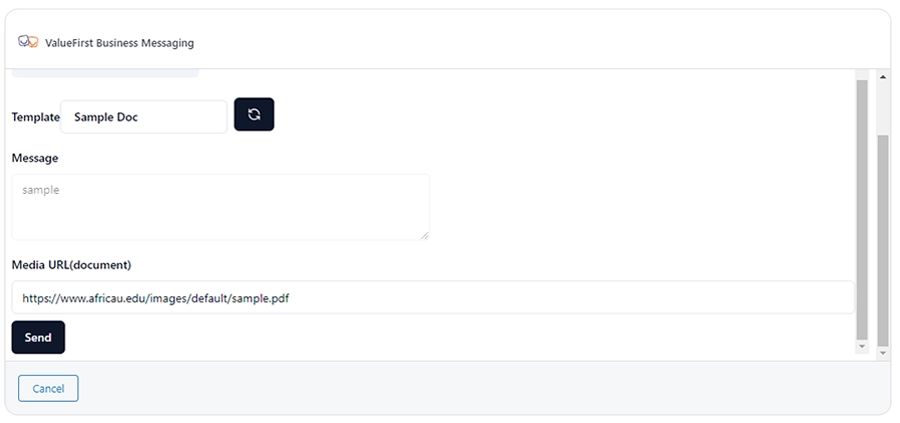
- Select WhatsApp Sender and select the template and click Send.
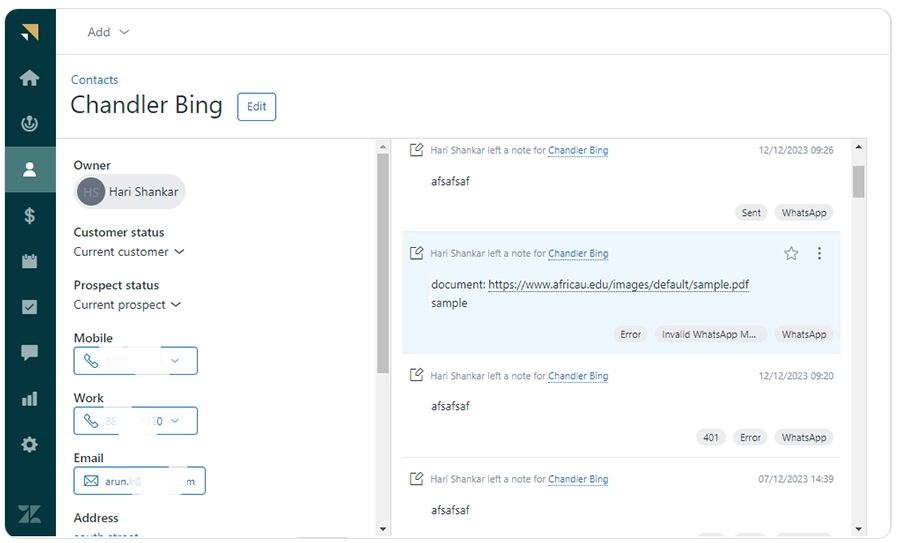
- After sending the message transaction data can be seen in the “Notes” section of the contact module.
DLR Report
DLR information will be added as a tag to the notes in the contact module which include Sent, Delivered, Read, Error, also error code number.
Inbound Message
If the Inbound Flow URL is configured in ValueFirst, the message sent by the customer will be added as a Note.
Message type that supported by the integration
Outbound Message - Freeform text and media template message (VIDEO, DOCUMENT, IMAGES), Header, Footer, Buttons
Inbound Message - Text, Image, Video, Document