


Introduction
Businesses can use ValueFirst WebEngage integration to create and send campaigns on WhatsApp.
Integrating ValueFirst as your WhatsApp Service Provider (WSP) in WebEngage allows you to manage and send WhatsApp campaigns directly from the WebEngage platform. Follow the below steps to set up the integration.
Pre-requisites
Create a Unified account.
Configuration
Step 1: Plugin Portal Signup
Log in to the plugin portal and complete the sign-up process using the provided link
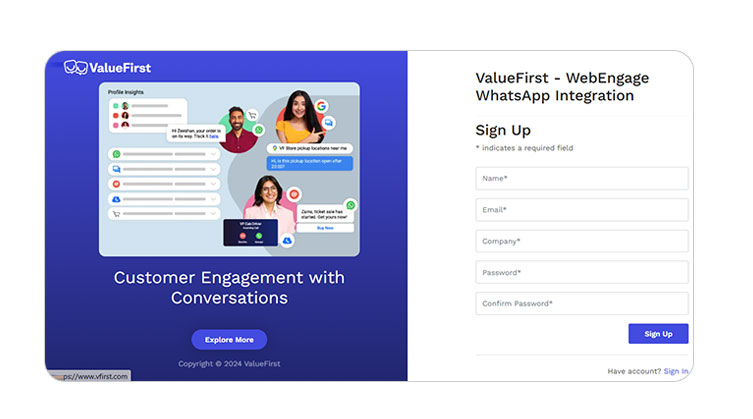
Step 2: Configure ValueFirst Credentials
Navigate to the ValueFirst WhatsApp tab in the plugin portal and enter the following details:
- ValueFirst Username
- ValueFirst Password
- WABA Number (with country code prefix 91)
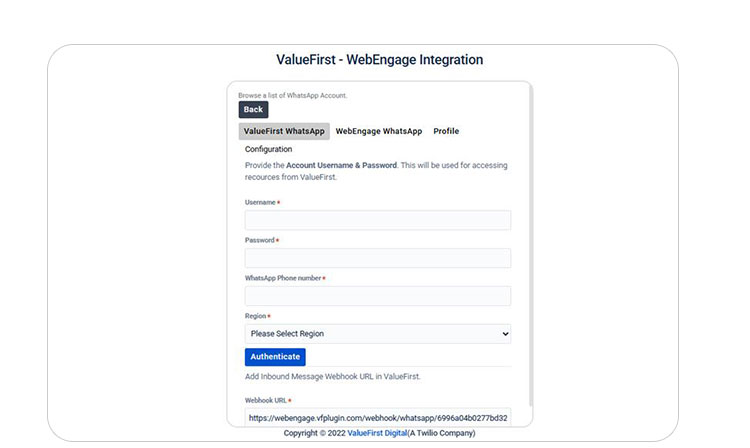
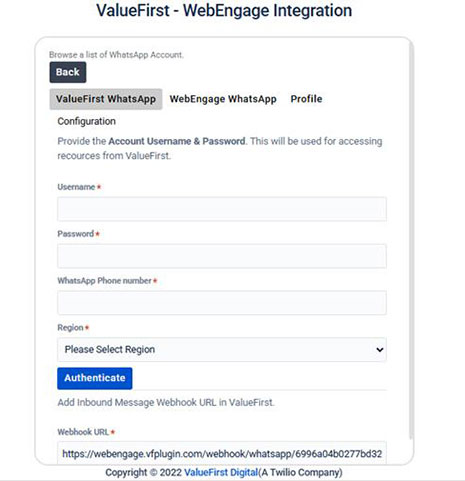
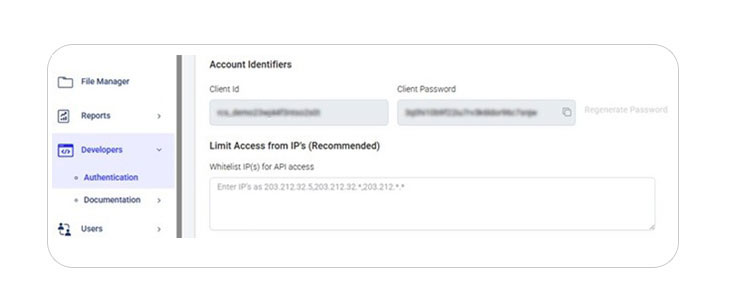
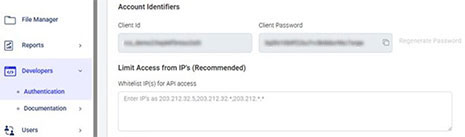
To obtain these credentials:
- Log in to the Infinito Portal
- Navigate the Developer Module
- Use the Client ID as the username
- Use the Client Password as the password
Step 3: Authenticate Configuration
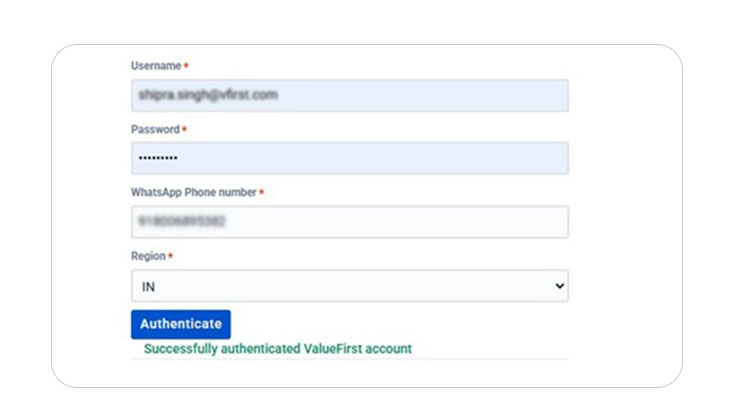
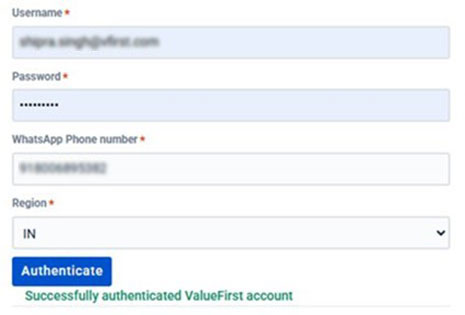
After entering the credentials, select the appropriate region and click Authenticate to verify the configuration.
Step 4: Retrieve Webhook URL from WebEngage
Log in to the WebEngage Dashboard and navigate to:
Data Platform → Integrations → WhatsApp Setup (Configure) → Actions (WSP) → View Webhook URL Copy the webhook URL displayed on this page.
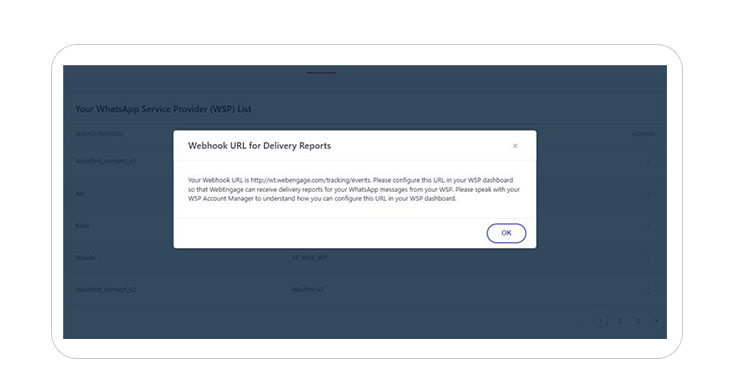
Step 5: Configure WebEngage WhatsApp in Plugin
Return to the plugin portal and switch to WebEngage WhatsApp configuration.
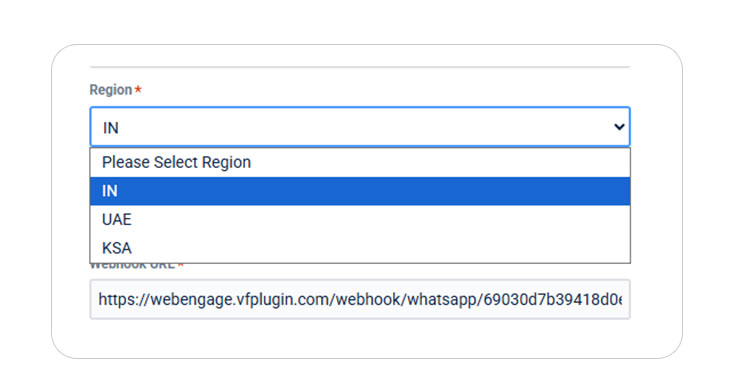
- Select one of the three available regions
- Ensure the selected region matches the region indicated in the WebEngage webhook URL
Step 6: Copy Bearer Token
From the plugin page, copy the Bearer Token (the token value starting with “e”).
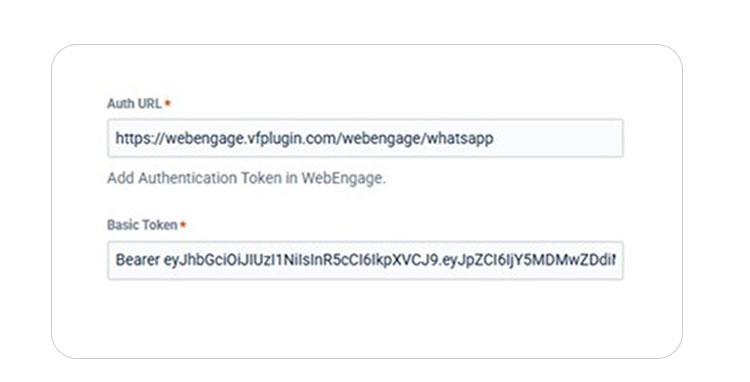
Step 7: Configure ValueFirst 2.0 in WebEngage
In the WebEngage Dashboard, navigate to:
Data Platform → Integrations
Scroll down and select ValueFirst 2.0, then fill in the following details:
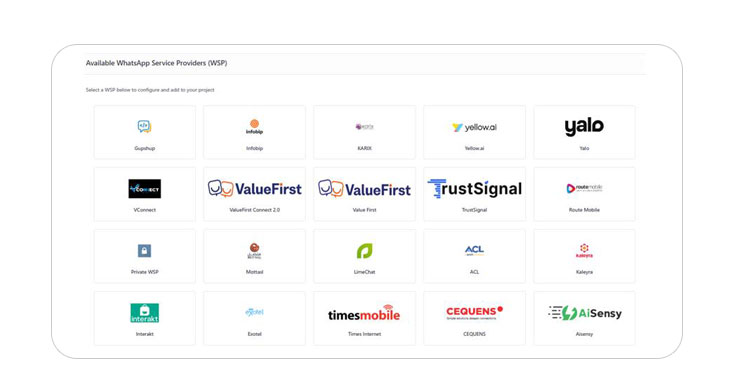
- Configuration Name
- WABA Number (with prefix 91)
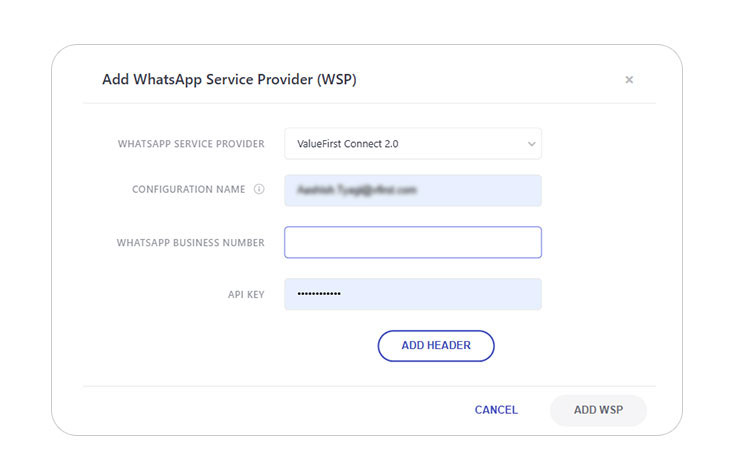
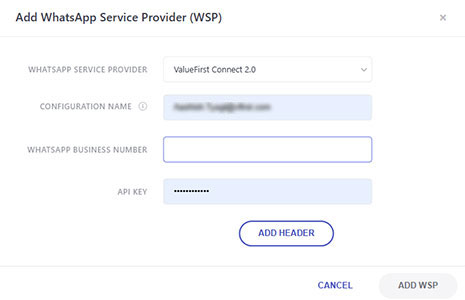
- API Key → Paste the Bearer Token copied from the plugin portal
Step 8: Save and Add Templates
After completing the configuration, click Save and proceed to add WhatsApp message templates for the ValueFirst provider.
Step 9: Verify Configuration
Before proceeding with campaign execution, send a test message to ensure that the configuration is correct and working as expected.