


Introduction
The process of integrating ValueFirst’s Rich Communication Services (RCS) capabilities with the Clevertap. The integration will allow users to send RCS messages, receive delivery receipts (DLRs), and manage campaigns through Clevertap’s platform.
- Receiving Delivery Receipts for Clevertap Campaigns:
Campaign managers can track the delivery status of sent RCS messages via CleverTap’s DLR system.
Pre-requisites for Integration
Before beginning the integration, ensure that the following Pre-requisites are met:
- ValueFirst API Credentials:
- Username: Your ValueFirst API username.
- Password: Your ValueFirst API password.
- Sender ID: The Sender ID registered with ValueFirst for RCS messaging.
- IP Whitelisting:
Ensure that the IP (43.205.172.215) is whitelisted against the XML account on the ValueFirst side.
Configuration
Integrate ValueFirst with CleverTap
This process involves the following three steps:
- Signup for ValueFirst - CleverTap Integration Plugin
- Configure ValueFirst
- Configure CleverTap dashboard
Signup for ValueFirst - CleverTap Integration Plugin
To get started with the integration, the first step is to sign up for ValueFirst - CleverTap WhatsApp Integration. Click this link to sign up
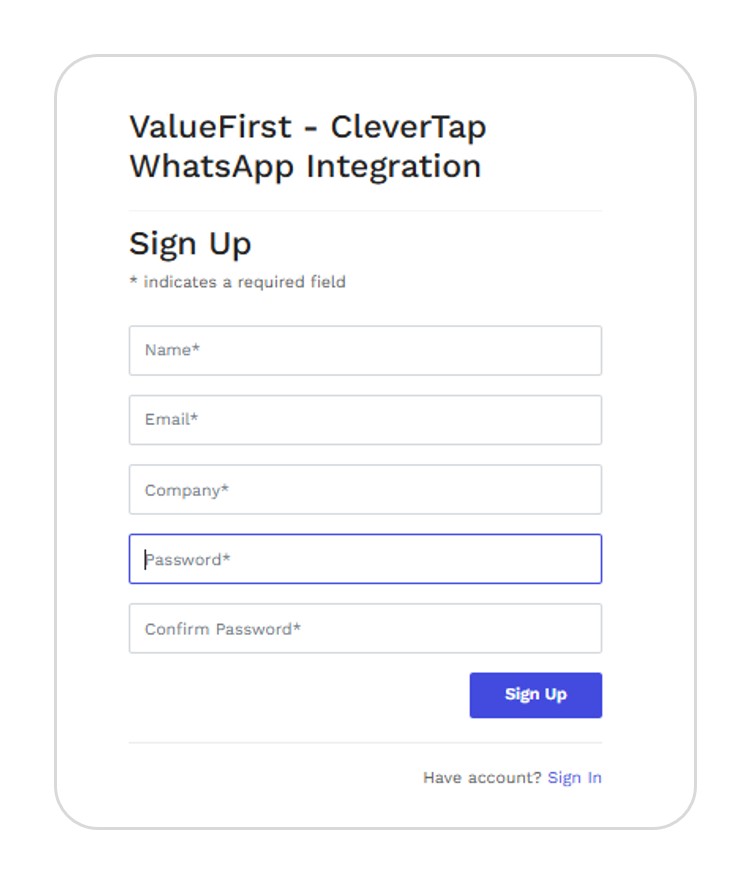
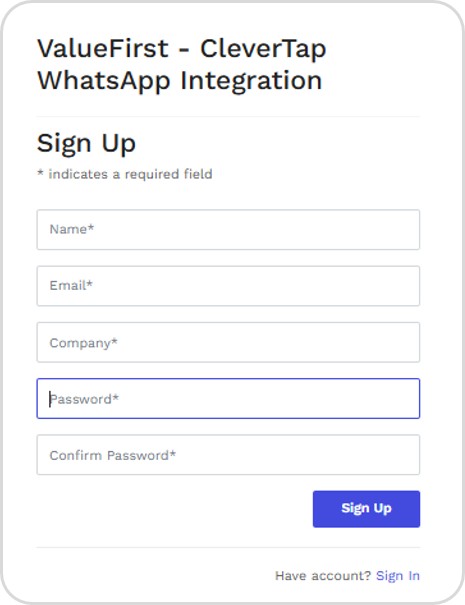
Sign up by entering the Name, Email, Company name, and Password.
Configure ValueFirst
To configure the ValueFirst WhatsApp connection, you need to log in to the ValueFirst portal using the credentials email and password configured in the previous step.
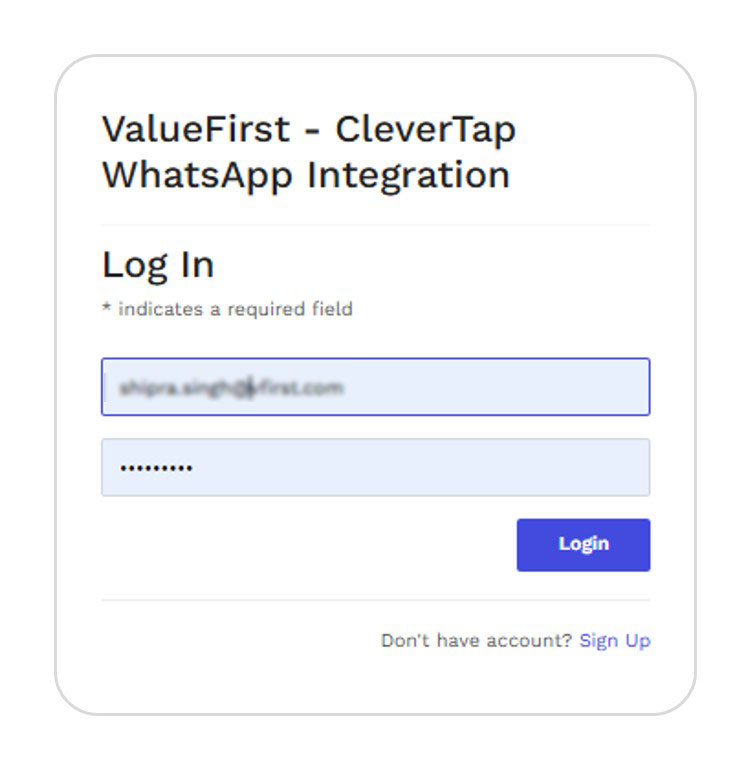
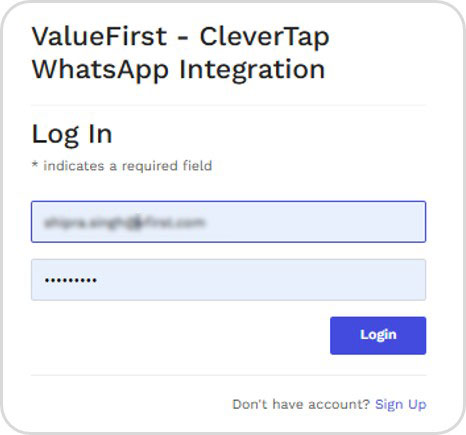
After you log in, enter the credentials - username, password, and add Sender Id as UNIMSG (received as part of a prerequisite) and click Authenticate to configure the connector
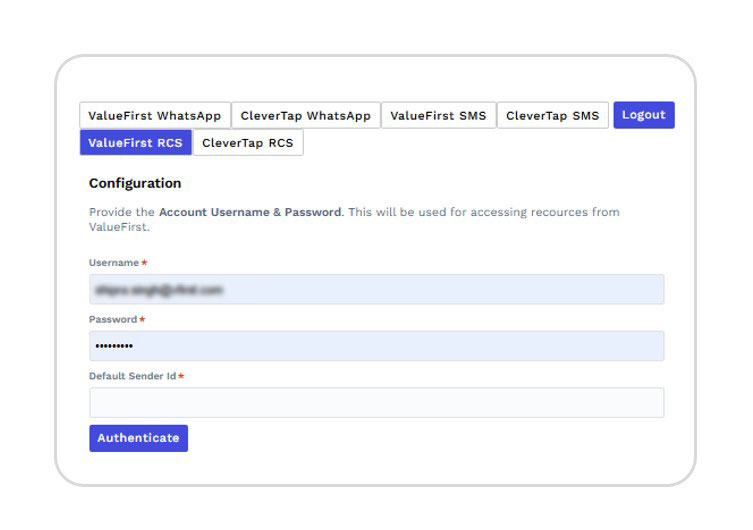
Setting Up the Clevertap RCS Tab
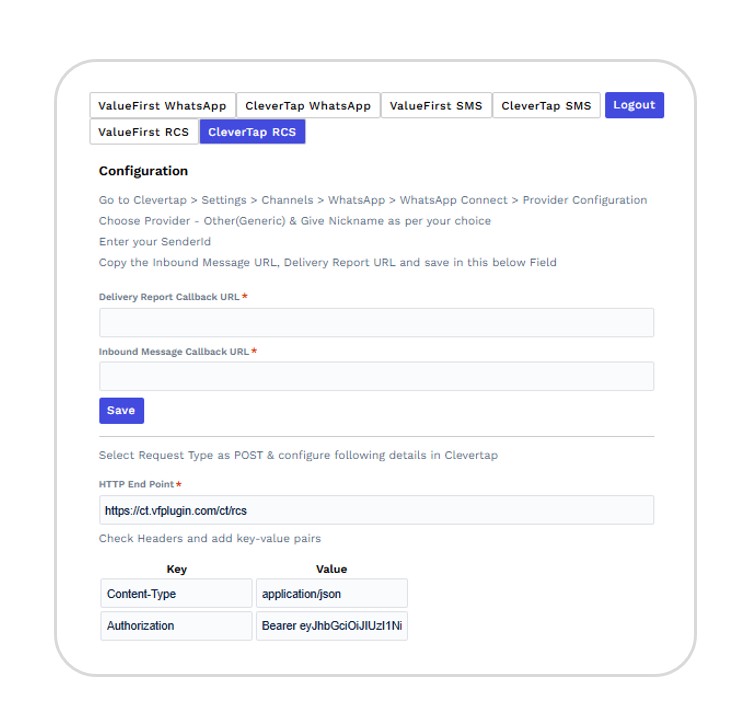
Following all the steps mentioned on CleverTap RCS Tap
Configure CleverTap Dashboard
To configure the CleverTap dashboard:
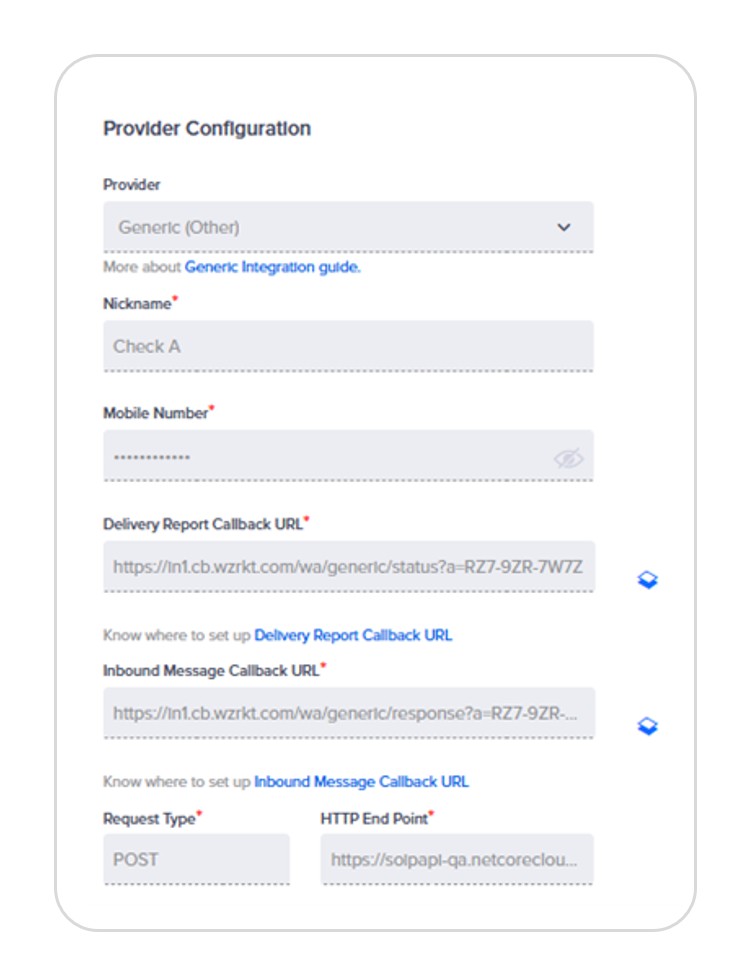
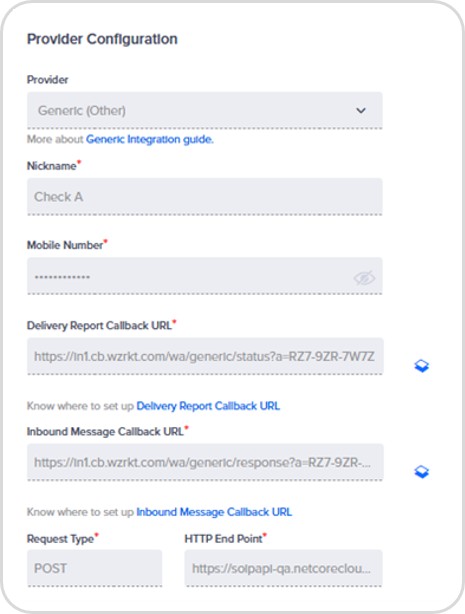
Navigate to Settings > Channels > WhatsApp from the CleverTap dashboard Click + Add Provider and select Generic (Other) from the dropdown. Enter the following details:
| Field | Description |
| Provider | Select Other (Generic) from the dropdown list. |
| Nickname | Enter the nickname as ValueFirst |
| WhatsApp Business Number | Enter your phone number onboarded to WhatsApp API by ValueFirst |
| Request Type | Ensure Request Type is Post |
| HTTP End point | You need to paste the Auth URL from ValueFirst post its configuration. |
Configure CleverTap Webhooks
To configure the webhooks, you need to:
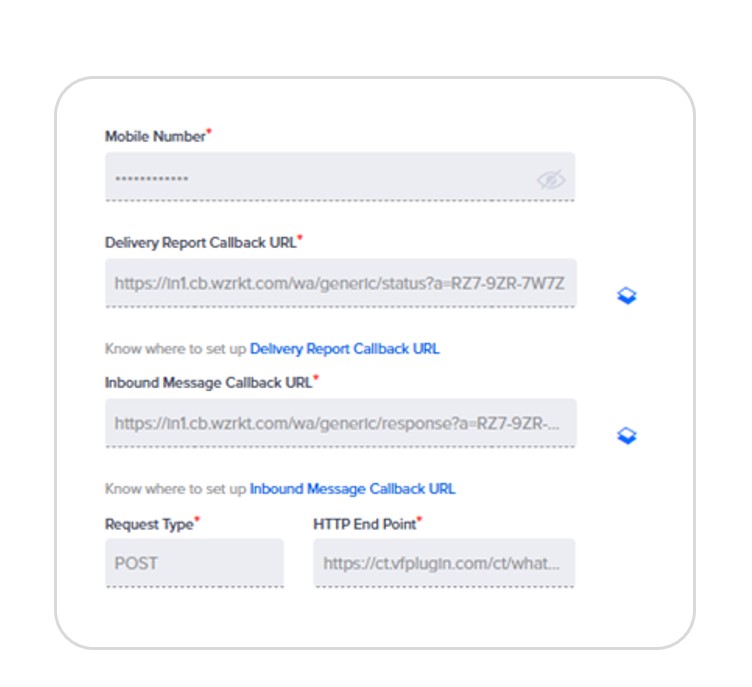
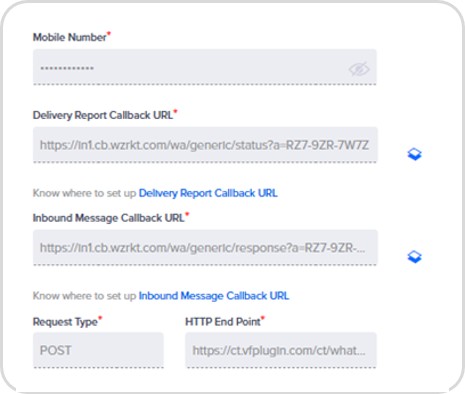
Copy the Delivery report callback URL and Inbound Message Callback URL from CleverTap dashboard and paste them into Valuefirst’s Status Callback and Incoming Callback fields respectively
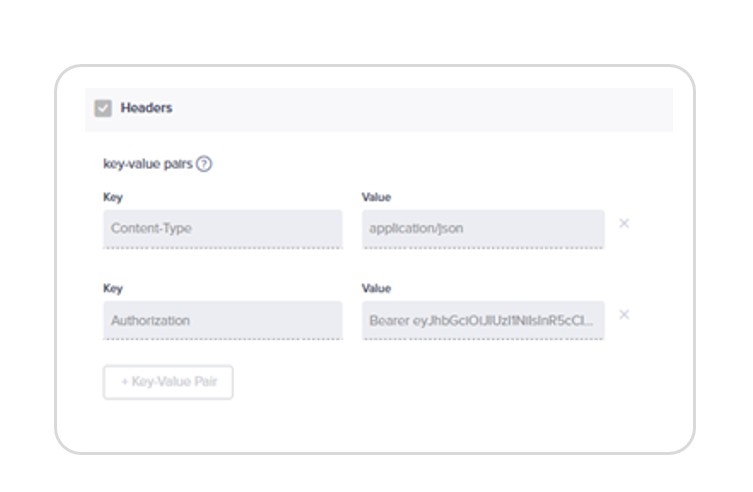
Click Header > Enter the Key name as Content-Type and value as application/Json.
Add another Key name as Authorization and paste the Basic Token Value from the ValueFirst plugin.
Adding Message Template
- To create WhatsApp campaigns, you need to have pre-approved WhatsApp message templates saved in the CleverTap dashboard. Follow the procedure below to add the templates.
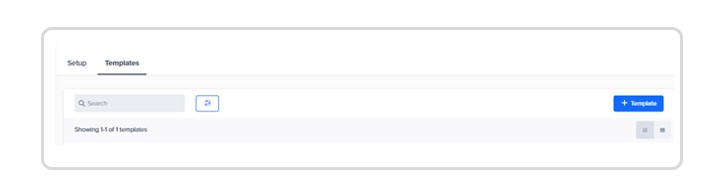
- Navigate to Settings > Channels > WhatsApp > Provider Nickname in the CleverTap dashboard. Further Select the Templates option and click +Template. Enter the template ID in the namespace field.
- Choose the type of template header (Text or Media). For Media headers, you can use Image, Video, Document, and Location
- Enter the message content.
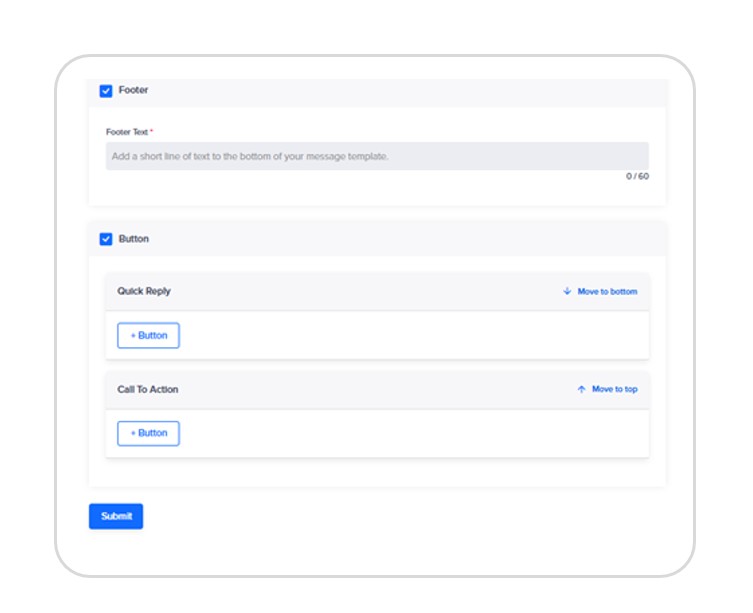
- You can also choose to add a Footer text and a Button (Quick Reply or a Call To Action).
- You can also choose the language in which you want to display the message.
- Click and submit the templete.
Testing a Message Template
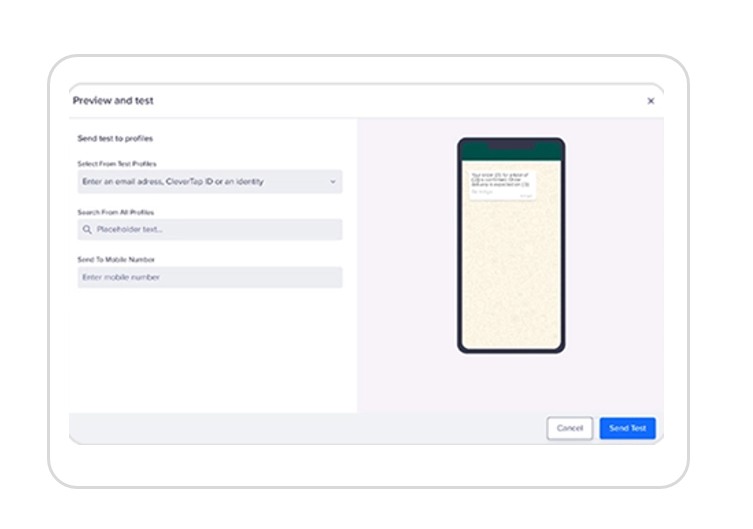
You can send a test message using the saved templates from the CleverTap dashboard as follows:
- Hover over the desired template for which you want to send a test notification.
- Click Send Test.
- Select the test profiles or manually enter the mobile number to whom you want to send the test message and click Send Test.
The success or failure response is displayed on the dashboard. If the message is not delivered, you can copy the response payload and share it with the ValueFirst team to debug the issue.